
Phishing, SMiShing, Vishing, ... Tishing!
You arrive at your office on a Monday morning. You check your emails, missed calls, and unread Microsoft Teams messages that have accumulated over the weekend. Among the emails, there was, of course, spam again, which you successfully identified and moved to the junk folder.
There is an open message in Microsoft Teams. The person who wrote to you seems to be a colleague who urgently needs information. Under their username, the organization is listed as the name of your company. „Microsoft Teams is an internal tool,” you think, and the organization also matches. So, you quickly give the colleague the information they need so urgently, so that they can also get off to a good start to the week.
But unfortunately, the alleged colleague was in fact a cunning attacker who deceived you.
How was that possible?
Tishing is a new phishing technique
Phishing is an omnipresent trick used by attackers today who are after access data. This is the case when attackers try to fish, i.e., steal passwords via email. In addition to phishing, SMiShing (attacks via SMS) and Vishing (attacks via telephone - Voice) have become established in recent years.
With the growing popularity of Microsoft Teams in recent years, due to a significant increase in home office, a new technique has been added, which we call Tishing. Tishing refers to phishing via Microsoft Teams. Attackers pretend to be trustworthy persons or entities to elicit sensitive data from the victim or spread malware. The tricks are the same as in classic phishing via email. Usually, pressure is built up through authority and urgency, so that there is no longer any room for coordination or verification of the facts.
Attackers elicit sensitive data via Microsoft Teams
Contrary to the first assumption, Microsoft Teams, at least in the default configuration, is not a purely internal tool. Any user of the platform can message any other user. It is irrelevant whether they are within a company domain or not. In addition, the organizational affiliation of a user can be freely chosen. For a small monthly fee, anyone can „found” an organization and name it as they wish. Then, a suitable target only needs to be selected and messaged. Apart from the mention of the organization name under the username, the external chat partner can only be recognized by a box labeled „External” to the right of the name. Our experience shows that these hints are easily overlooked or ignored.
An attack attempt could look like this: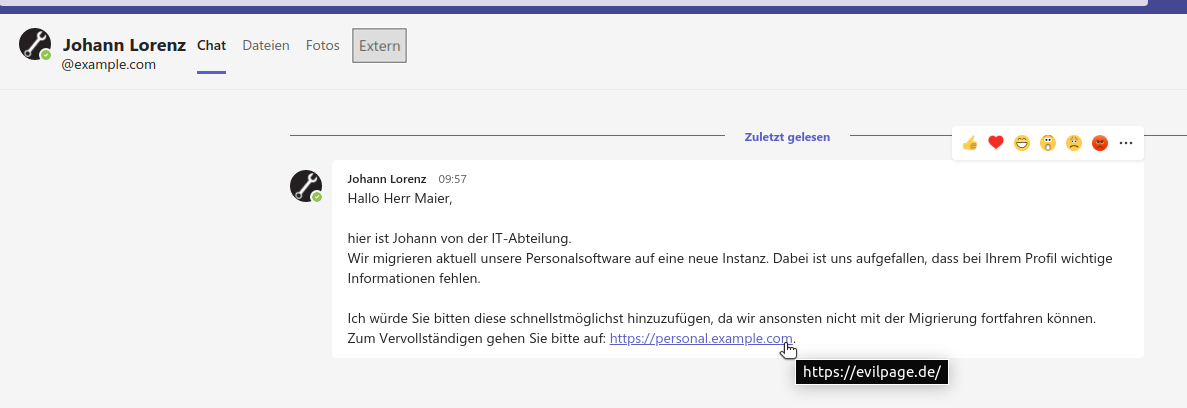
Attacks via external instances can be technically prevented
Administrators can remedy such attacks in the configuration of Microsoft Teams. Access from external organizations to one's own Microsoft Teams instance is activated by default. Therefore, options such as Block specific domains or Allow all external domains should definitely not be used in the Teams Admin Center under Users > External access, but should be replaced by the following alternatives:
- The best choice for the aforementioned setting under Users > External access is Block all external domains. This generally disables access from the outside.
- If access is required, at least to certain external organizations, a whitelist approach should be chosen. This can be implemented with the option Allow only specific external domains.
Administrators can find further information on the configuration in the Microsoft Teams documentation on managing external access.
The general rules for protecting against social engineering also apply to Tishing
If these measures are not implemented by administrators, external access is allowed. For this reason, Microsoft Teams messages from new, unknown chat partners should be treated in the same way as any other communication attempts, such as by email.
Specifically, it should be kept in mind that a chat message does not necessarily have to come from within one's own organization. Therefore, sensitive data should not be sent at all, or at least only after an initial validation of the chat partner via a second channel.
The following points should also be observed when receiving new chat requests:
- Always be skeptical of the identity of the alleged chat partner. In Microsoft Teams, specifically check whether there are indications that your chat partner belongs to an external organization.
- Never click directly on links to login forms, but open the website manually in the browser.
- Always ask for confirmation via a second channel for strange requests or sensitive data.
- Do not let yourself be put under (time) pressure.
You can find these and other tips for protecting against social engineering attacks in our fact sheet with effective strategies against social engineering.

On 04.03.2022 in the category Communication Security published.