Seven Recommendations for a Secure WLAN
Almost every household today uses a wireless local area network (WLAN) to enable device communication and access the internet. A wide variety of information is transmitted over this network, including online banking data, personal emails, or VoIP calls. To prevent this data from being read or misused by so-called wardrivers and other attackers, the network must be secured. In addition to protecting individual privacy, the internet connection owner must also ensure, in accordance with standard practices, that the connection is not used by botnets or for illegal downloads, as decided by the BGH in 2010.
Below, we provide seven recommendations for a secure WLAN and provide information on encryption methods, secure passwords, and the handling of router firmware.
1. Choose a Secure Encryption Method
For your WLAN network, select the WPA2-PSK encryption method with sufficiently strong passwords to protect your communication from eavesdropping.
Routers typically offer WEP, WPA, and WPA2. However, the first two are no longer considered secure: WEP has numerous weaknesses and can be cracked within a few hours; WPA uses the RC4 stream cipher, which has also been successfully attacked.
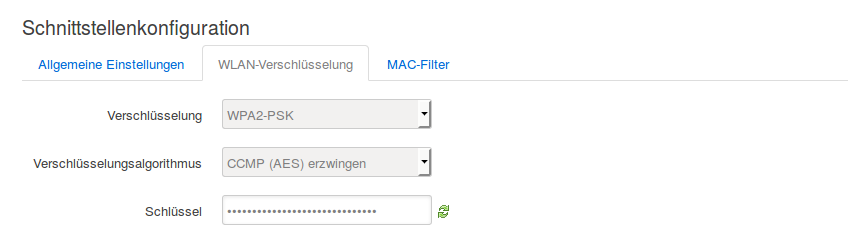
While WPA2 has attack vectors in certain situations, WPA2-PSK used with CCMP (AES) is still considered the most secure encryption method. Secure passwords play a crucial role here, as you will read in the next section. On some routers, you can explicitly set the encryption method to WPA2-PSK with CCMP (AES) in the WLAN security settings.
Corporate networks have different requirements than private networks. For instance, RADIUS is used as an authentication service. Contact us to arrange a non-binding initial consultation. We will design a secure network tailored to your needs.
2. Choose a Secure Password
It is imperative to change the default password set upon the delivery of your WLAN router and choose a secure password. The BSI recommends a 20-character password consisting of uppercase and lowercase letters, numbers, and special characters.
Maximum security is achieved by utilizing the maximum allowable password length, which is 63 characters for WPA2-PSK. The password should meet the following requirements:
- Uppercase and lowercase letters, numbers, and special characters such as ".,-_+!?"
- No dictionary words or names
- Do not supplement simple passwords with punctuation marks at the beginning or end
- No common repetition patterns like "asdfjklö" or "12345"
Users are often deterred by long passwords as they are inconvenient to enter. However, the setup of WLAN connections for a device only needs to occur once and is not a regular task. The readability of the password can be improved by using a serif font, which allows letters to be clearly identified. If this is not possible, one could avoid similar-looking characters like "O0Il|1".
Password security increases exponentially with length. While an offline brute-force attack can test 350 billion keys per second, an 8-character password of letters and numbers would be computationally cracked in less than 11 minutes—whereas a 10-character password would take nearly 28 days. Therefore, choose a sufficiently long password of at least 20 characters.
A password meeting the described requirements would look like this:
?nR.,vg-5+7W-pwP_,cH (124 bit).
3. Deactivate WPS
Deactivate WPS, a functionality for easy connection to a wireless network. WPS exists in different models, with the common PIN method being considered insecure. Since a maximum of 11,000 attempts are needed to systematically guess the PIN, it can be guessed within a few hours. For other WPS methods, such as PBC, where password-less connection to the wireless network becomes possible for a certain period, ensure physical access security for the router so that unauthorized persons, for example in public areas, cannot activate WPS.
4. Install Current Router Firmware
Numerous security vulnerabilities in router firmwares were reported recently. Vulnerable routers were also found in 2014, as well as before that and even earlier. Vulnerabilities have repeatedly been found in software from router manufacturers, which is why it is important to regularly check the router's firmware for updates.
Typically, you can download the firmware update from the manufacturer's page. Ensure that the download link is an https link and is provided by the router manufacturer.
For older models, manufacturers often no longer offer updates. Therefore, it may be useful to consider alternative router firmware, such as those from projects like OpenWRT or Freetz.
Do you doubt whether your router and thus your entire network is secure? Contact us to arrange a non-binding initial consultation.
5. Deactivate Remote Maintenance and Unused Services
Deactivate the possibility of remote maintenance if it is not required. This reduces the risk of malicious hackers attacking your router's admin access from the outside. For similar reasons, we recommend deactivating unused services such as FTP, SSH, SMB, or UPnP. Since additional services can have vulnerabilities or may not be sufficiently secured, deactivation effectively reduces the attack surface.
6. Choose Secure Passwords for the Admin Area
What applies to the encryption of the wireless connection should also be observed for access to the admin area. Choose a secure password for administrator access and store it in a password management program such as KeePass. This program also assists you in creating random, secure passwords.
7. Set Up an SSL-Encrypted Connection to the Admin Area
Many routers offer the possibility to install an SSL certificate and allow connections to the admin portal to be SSL-encrypted. Make use of this functionality if you have the opportunity. This prevents communication from being eavesdropped upon and makes potential attacks more difficult.
If you cannot set up self-signed certificates, the router typically creates its own certificate during setup. This leads to a certificate warning in the browser upon the first call, which you must accept. Ensure that it is the router's certificate. You should set up this functionality immediately after resetting the router to factory settings and while no one else is in the network.
